
Install Apollo Group TV on Firestick & Fire TV
Amazon Firestick and Fire TV install through the Downloader app, using the Downloader code below — no app store listing needed.
Downloader fetches and installs the Apollo Player — it's a separate, one-time-use app with nothing to do with Apollo Group TV itself. See the full Downloader vs. Player explainer if you want more detail before starting.
Get set up in four steps
Downloader code
2791705
Install the Downloader app
On your Fire TV, Android TV, or Android device, install "Downloader" from the Amazon Appstore or Google Play if you don't already have it.
Screenshot needed: Downloader app listing on the Amazon Appstore
/images/install/downloader-app-amazon-appstore.webp
Enter your code
Open Downloader, type the code 2791705 into the address bar, and select Go.
Screenshot needed: Downloader address bar with the install code entered
/images/install/downloader-code-entry-screen.webp
Install the Player
Downloader fetches the Apollo Group TV Player package automatically — select Install when prompted, then Done.
Screenshot needed: Downloader install confirmation for the Apollo Player
/images/install/downloader-install-confirmation.webp
Activate & watch
Open the Player, enter the activation details from your welcome email, and you're streaming.
Screenshot needed: Apollo Player first launch / activation screen
/images/install/player-first-launch-activation.webp
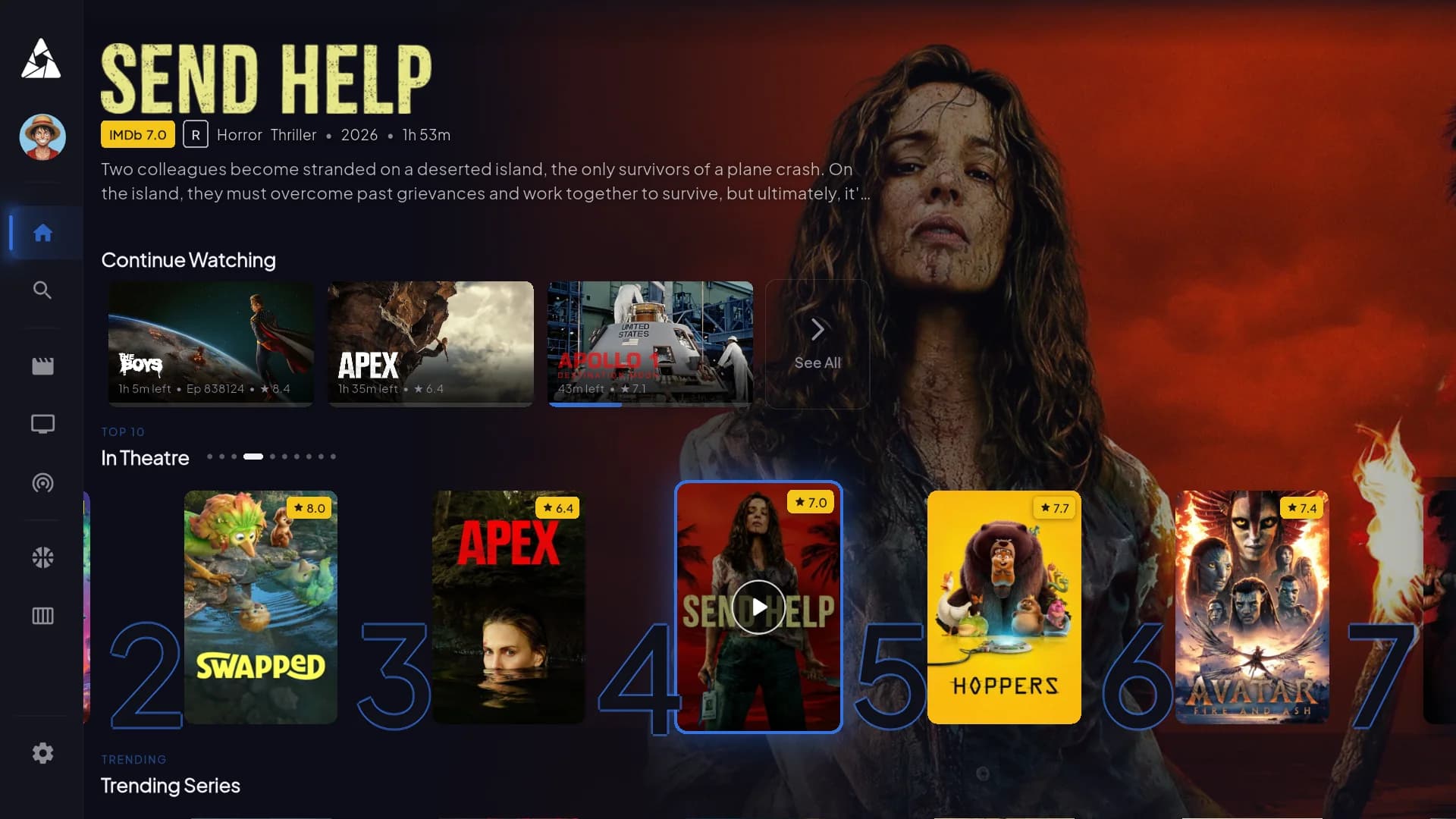
Same Player, built for the big screen
Once installed, the Player opens straight into live channels, your EPG guide, and the full on-demand library — no separate app for VOD.
Common questions
Code still not installing? See the full Downloader troubleshooting guide.
Yes. The Apollo Player isn't listed in the Amazon Appstore, so Downloader is the tool that fetches and installs it using your code. Downloader itself is a free, separate app made by AFTVnews — it's only used for this one-time install step.
Double-check you're entering it in the Downloader app's address bar (not a search engine), and that your Fire TV has a working internet connection. If it still fails, contact support and we'll get you a direct install link instead.
No. Once installed, the Player checks for updates automatically on launch and prompts you in-app when a new version is available.