
Apollo Group TV on Samsung & LG Smart TVs
Samsung, LG, and other major Smart TV platforms are supported through the TV's own built-in app store.
Smart TV activation, step by step
Built-in app store install
Samsung, LG, and other major Smart TV platforms are supported through the TV's own built-in app store — not a separate sideloading tool.
Steps sent after checkout
Because Smart TV app stores vary by brand and model, the exact install steps for your TV are sent in your activation email once you subscribe, rather than a single universal walkthrough.
Support if you get stuck
If your TV isn't listed in your activation email or the steps don't match what you see, 24/7 chat support can walk you through it directly.
Step-by-step screenshots pending
A confirmed, per-brand Samsung/LG install sequence isn't documented yet. Once real steps are confirmed, this section becomes a numbered walkthrough with a screenshot per step, matching the Firestick and Android TV guides.
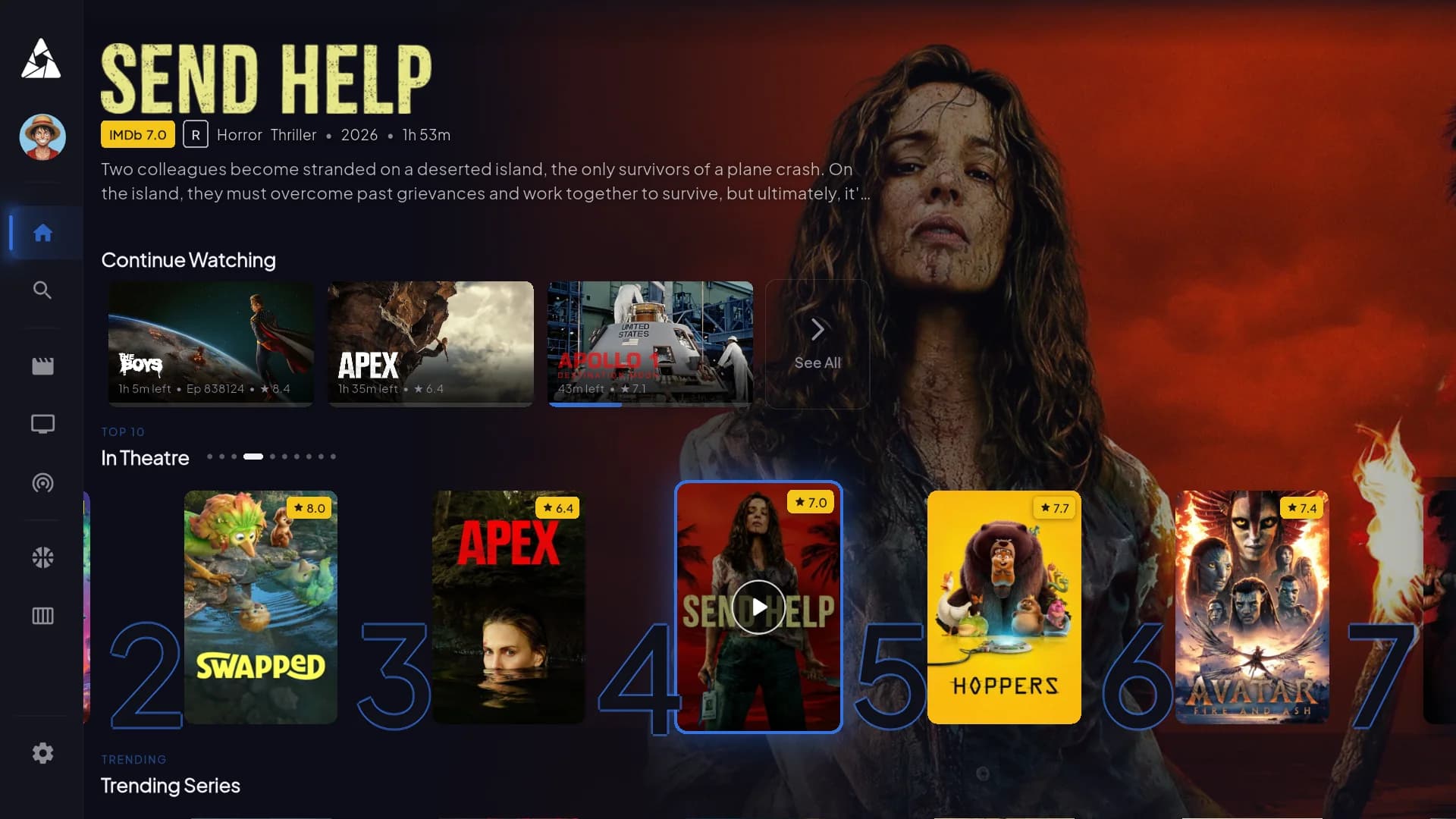
Same Player, on your TV's own app store
Once installed, the Player opens straight into live channels, your EPG guide, and the full on-demand library — the same app experience as every other supported device.
Common questions
Samsung, LG, and other major Smart TV platforms are supported via the TV's built-in app store. If you're not sure about your specific model, contact support before subscribing and we'll confirm.
Downloader is a sideloading tool built for Fire TV and Android — it isn't available on Smart TV platforms. Smart TVs install through each brand's own app store instead, which is why the exact steps depend on your TV's brand and model.
They're included in the activation email you receive after subscribing. If it's missing or unclear, reach out through live chat and support will send you the steps directly.